The polite way to step away
from a group call.
Unmuting to say you'll be right back interrupts. A chat message stops the speaker mid-sentence. StatusCam puts your status straight into your camera feed — everyone sees it, nobody has to pause.
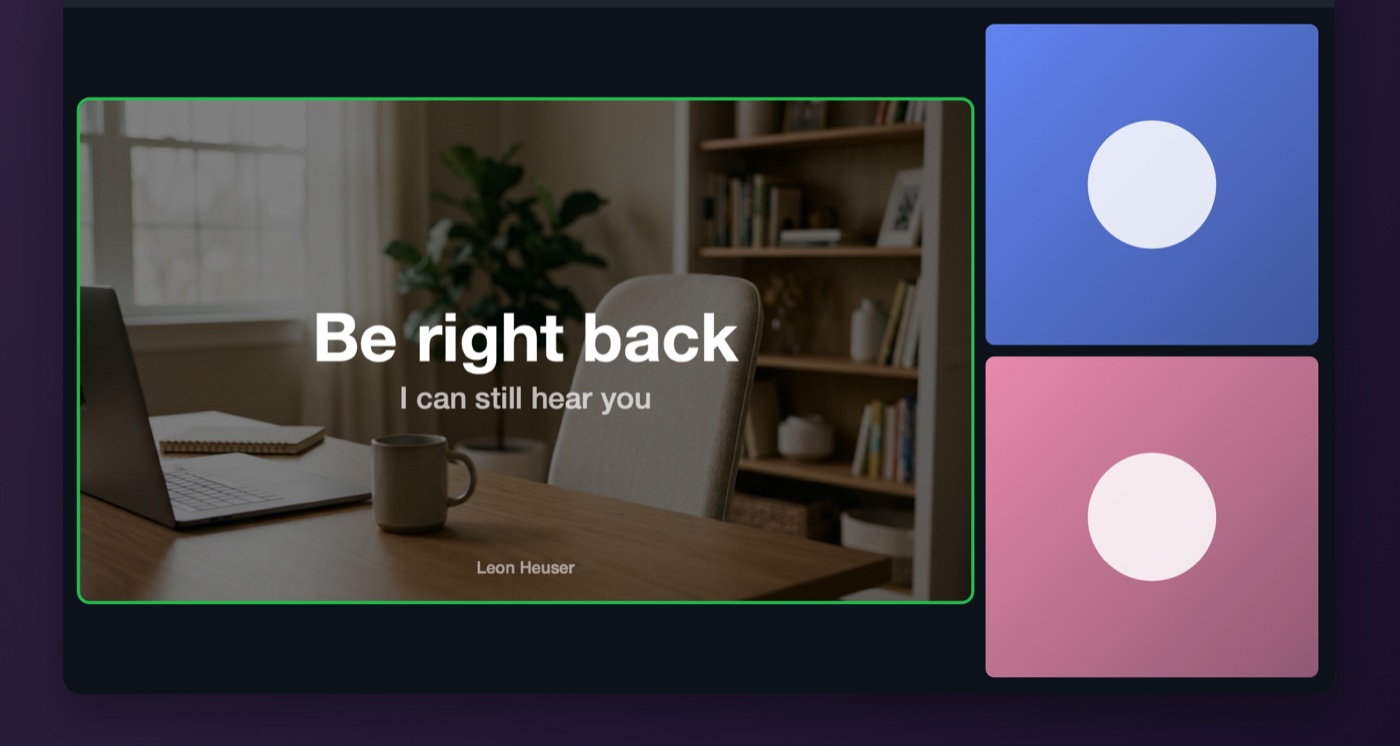
A group video call where a colleague is presenting and you are one of the small thumbnails, listening. The doorbell rings — cut to the front-door camera, a courier with a parcel. Cut to the StatusCam app: the 'Show status card' switch flips on. Back in the call, your thumbnail now shows a 'Be right back — I can still hear you' card while the meeting simply continues.
The doorbell, mid-meeting. One shortcut — ⌥⌘B — and your tile says it for you, while you still hear every word. Try it: press B.Try it: tap your tile.
Why StatusCam
Step away. Nobody has to pause.
The doorbell, the kids, a coffee — stepping away is normal. Announcing it shouldn't derail the meeting.
Your camera does the talking
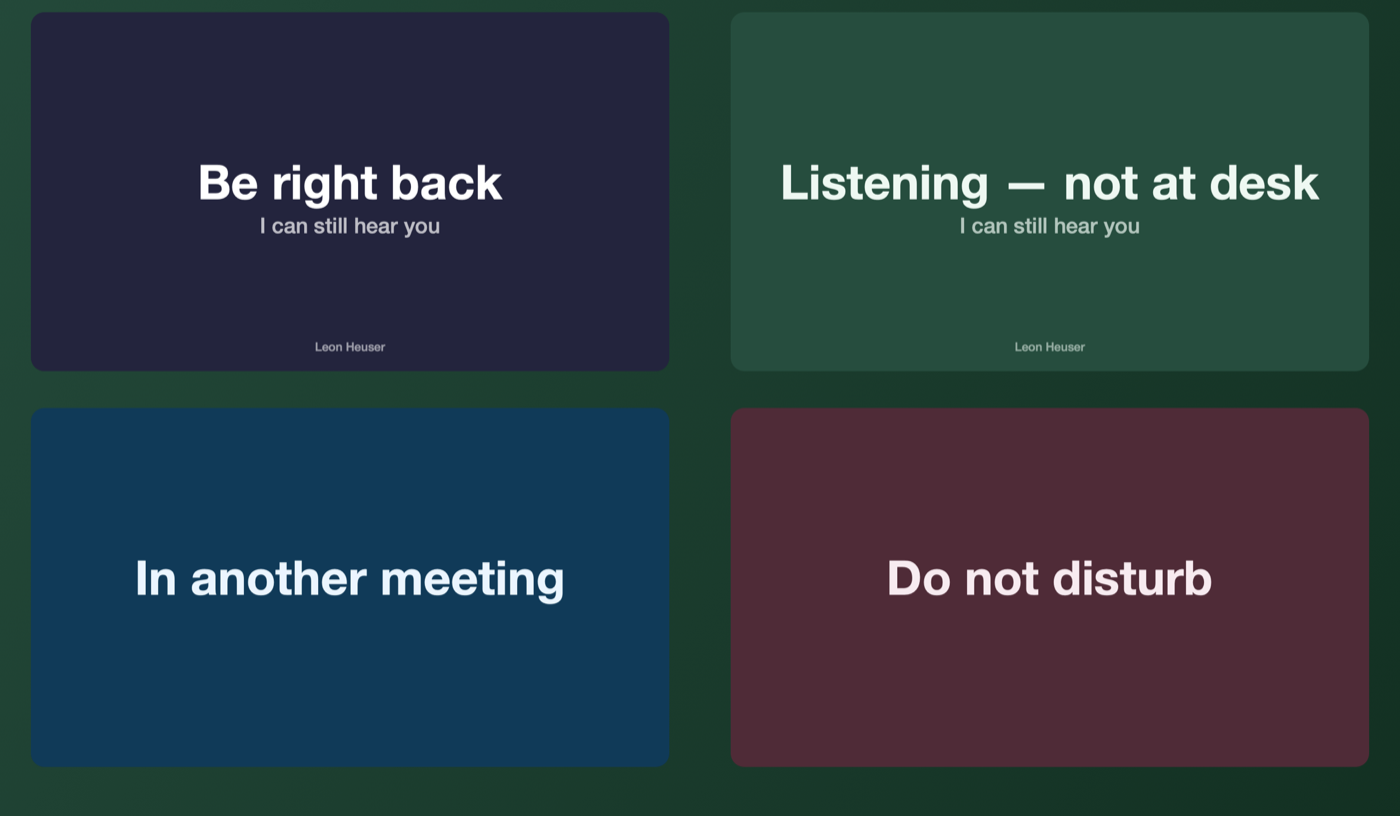
One tap — or one shortcut — and your video becomes a clear status card: "Be right back", "Listening — not at desk", or your own words.
No one stops mid-sentence to read a chat message. No awkward unmuting over the current speaker. The call just keeps flowing, and everyone knows where you are.
And when you can't listen for a moment — a delivery at the door — the card says that too, so nobody talks to an empty chair.
Looks right in every call
Show the card on a clean color, over your live video, or on your real background with on-device blur.
When the card is off, your actual camera streams straight through StatusCam — so you pick it once as your camera and never touch the camera picker mid-call again.
One small window runs it all
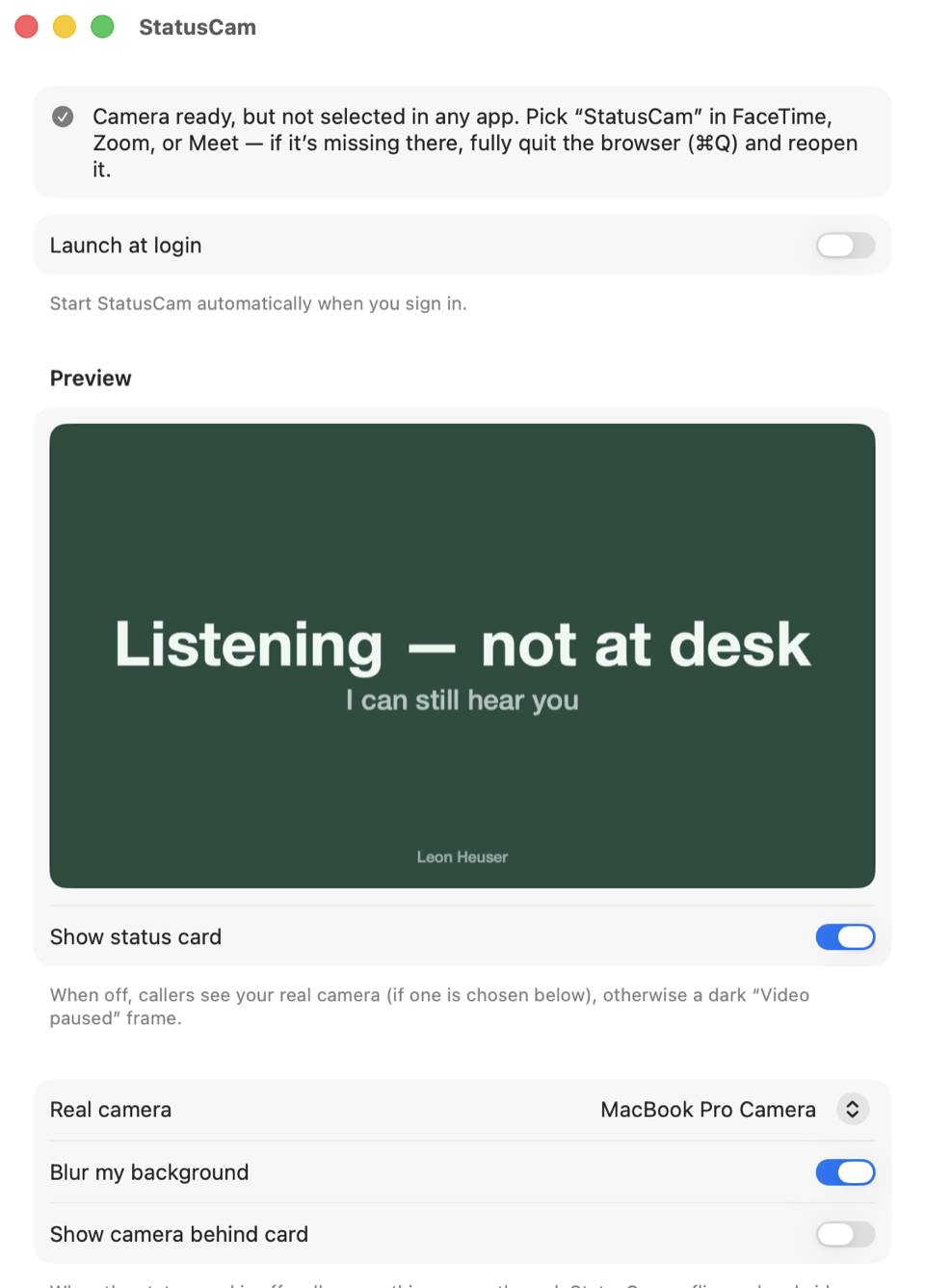
Presets, your own message and subtitle, six themes plus free color pickers, your real camera, and on-device blur — everything in one native macOS window.
A live preview shows exactly what callers see. And most days you won't even open the window: the menu bar and ⌥⌘B do the job.
Features
Small app. Does one job well.
StatusCam lives in your menu bar and shows up as a camera in every call app. Everything else is details — done properly.
One-tap status cards
Four presets, custom text, six themes, and your name — switched from the app or straight from the menu bar.
Global shortcut
⌥⌘B flips the card from anywhere — even while Meet, Zoom, or Teams is frontmost.
Real camera passthrough
Card off? Your actual camera streams through StatusCam. You never touch the camera picker mid-call.
On-device background blur
Blur your background locally — then turn off Meet's blur so your status card stays pin-sharp.
Transparent mode
Show the card over your live video instead of replacing it — you stay visible, the message stays readable.
Mirror option
Flip the card so it reads correctly in your mirrored self-view. Callers will then see the text reversed.
Privacy
It can't phone home.
Not won't — can't.
StatusCam ships with no network access at all. That's enforced by the macOS App Sandbox — the operating system physically blocks the app from making any connection. Your video is processed on your Mac and never leaves it.
Setup
Ready in one minute.
Install StatusCam
Download from the Mac App Store and follow the short onboarding.
Allow the camera extension
macOS asks once — enable StatusCam under Login Items & Extensions. That's Apple's official virtual-camera mechanism.
Pick StatusCam as your camera
In Meet, Zoom, Teams, FaceTime — anywhere. Then step away whenever you need to.
FAQ
Questions, answered.
Which call apps does it work with?
Any app that lets you choose a camera: Google Meet, Zoom, Microsoft Teams, FaceTime, Slack, Discord, Webex, OBS — if it has a camera picker, StatusCam appears in it.
Do people hear me while the card is up?
Yes — StatusCam only replaces your video. Your microphone is untouched, so you keep listening and can jump back in any time. (Mute yourself in the call app if you don't want to be heard.)
What does it cost?
StatusCam is free. No subscription, no account, no catch.
What do I need to run it?
A Mac running macOS 14 (Sonoma) or later. StatusCam uses Apple's Camera Extension technology — the modern, sanctioned way to build virtual cameras.
Is my video really private?
Yes. The app has no network permission at all, so macOS itself prevents any data from leaving your Mac. Read the privacy policy — it's refreshingly short.